Move a slide
To make a slide the first or last slide in a presentation, drag it with the mouse on the Slide bar, or follow these steps:
1.Select a slide on the Slide bar.
2.Move the slide in one of the following ways:
•On the Slide tab, click  Move slide and run the Move to beginning or Move to end command.
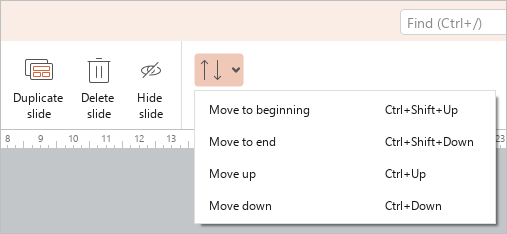
•Right-click to open the slide context menu and run the Move to beginning or Move to end command.
•When working in macOS, run the Slide > Move to beginning or Move to end command from the command menu.
•Press Ctrl+Shift+↑ (Windows, Linux) or ⇧Shift+⌘Cmd+↑ (macOS) to move the slide to the beginning. Press Ctrl+Shift+↓ (Windows, Linux) or ⇧Shift+⌘Cmd+↓ (macOS) to move the slide to the end.
To swap the selected slide with the previous one, drag it with the mouse on the Slide bar, or do one of the following:
–On the Slide tab, click Move slide and run the Move up command.
–When working in macOS, run the Slide > Move up command from the command menu.
–Press Ctrl+↑ (Windows, Linux) or ⌘Cmd+↑ (macOS).
To swap the selected slide with the next one, drag it with the mouse on the Slide bar, or follow these steps:
–On the Slide tab, click Move slide and run the Move down command.
–When working in macOS, run the Slide > Move down command from the command menu.
–Press Ctrl+↓ (Windows, Linux) or ⌘Cmd+↓ (macOS).