Correct spelling mistakes
If a spelling error is found in a word, you can:
–Correct the error: Select the correct spelling of the word.
–Ignore the error: Add the word to the ignore list and remove the red underline. Ignoring errors is effective for the duration of one session of work with the document. When you reopen the document, spell check will run again.
–Add the word to the Custom dictionary.
The Grammar and spell check pane is designed to work with spelling errors.
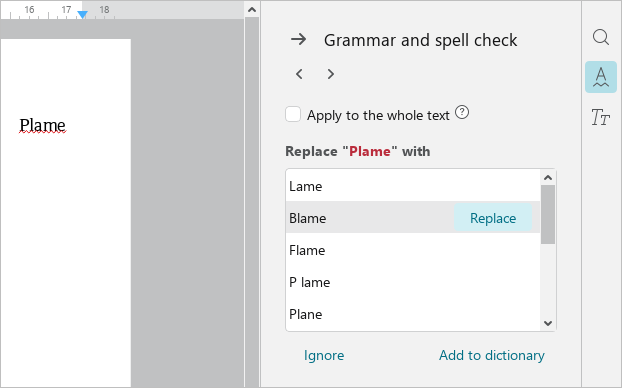
The pane is displayed and hidden when spell check is enabled and disabled.
To hide the pane when spell check is enabled, do one of the following:
–At the top of the pane, click  .
–On the right sidebar, click  Grammar and spell check.
–Press Esc.
To display the pane again, click Grammar and spell check on the right sidebar or press F7.
When the pane opens, the first error from the current cursor position is automatically selected in the text.
A spelling error can be corrected or ignored:
–Only in this word
–In this word throughout the entire document
To correct the error in this word only, do one of the following:
–In the Grammar and spell check pane, in the Replace “...” with list, hover your cursor over the correct spelling of the word and click Replace.
–In the text, right-click the selected word and choose the correct spelling variant from the context menu.
To ignore the error only in this word, click Ignore in the Grammar and spell check pane.
To correct an error throughout the entire document:
1.On the Grammar and spell check pane, select the Apply to the whole text checkbox.
2.In the Grammar and spell check pane, in the Replace “...” with list, hover your cursor over the correct spelling of the word and click Replace all.
To ignore the error throughout the entire document, do one of the following:
–In the Grammar and spell check pane, select the Apply to the whole text checkbox and click Ignore all.
–In the text, right-click the selected word and select Ignore all command from the context menu.
After running the command, the next error is automatically selected in the text. To move between errors manually, use the  and
 buttons.
Error checking is performed first in the main text of the document and then in the headers and footers.
If you need to run a recheck on a word that was missed throughout the entire text, follow these steps:
1.Hover the mouse cursor over a word or select the entire word.
2.Right-click it and run the Check spelling option from the context menu.
The table below lists the keyboard shortcuts that can be used to work with the Grammar and spell check pane.
Keyboard shortcut |
Description |
|---|---|
F7 |
Open the pane |
Tab |
Go to the next pane element |
Shift+Tab |
Go to the previous pane element |
Space |
Select or clear the Apply to the whole text checkbox Click the Ignore/Ignore all button or Add to dictionary button |
↓ and ↑ |
Go to the next or previous spelling of the word |
Esc |
Close the pane |